
Changelog

Follow new updates and improvements to Consent Studio.

Show category switches next to each category
Hi there,

Your visitors can now choose their consent right where they read what each category means.

Switches next to each category

In the v2 banner, the Customise screen shows all category switches together at the top. With the new setting Show Switches Next to Each Category, each category gets its own switch in its header row instead, with the heading on the left and the switch on the right. The shared block of switches at the top is then removed.

A few things to know:

  • Functional stays locked, as before.
  • A category you offer that has no tracking technologies still shows its heading, explanation and switch, so visitors can always make a choice.
  • Each switch is named by its category heading, so screen readers announce it clearly.

You find the setting under Web CMP > Behaviour, in the Customise Screen section. It is available for the v2 banner on plans that include the Customise screen.

Nothing changes unless you turn it on

Existing sites keep their current layout. New sites get the setting turned on by default.


We thank you for your feedback and your trust in The Full Consent Stack.

On behalf of the team,

Thierry Maasdam
Head of Product
Improved

Better tracking technology management: correct, bulk edit and keep your changes

Hi there,

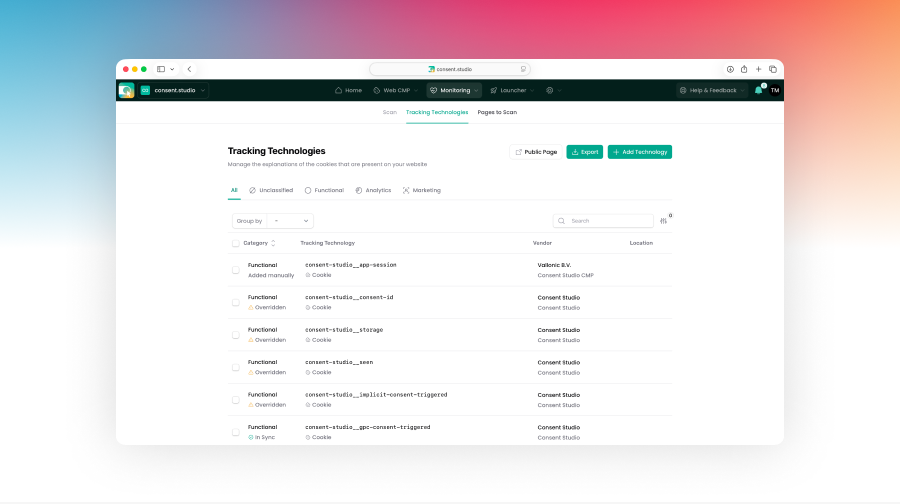
Monitoring fills in the details of the tracking technologies it finds using our own database. But you know your website best. So you can now correct those details yourself, and your corrections stay put.

Correct a tracking technology, and keep your changes

  • Click the padlock next to a field, or untick it under Synchronisation, then change the value and save. Future scans no longer overwrite it.

  • A Differs from our database notice shows where your values differ from ours. Click the padlock again to go back to our value.

  • Your corrections also show in your public tracking technologies declaration.

Other improvements

A clearer overview

The tracking technologies list now shows the sync status of each item, and lets you change the category, vendor or platform of many items at once.

Better data from our database

We reviewed more than 860 tracking technologies across 143 vendors. The read more link now points to whoever is responsible, which for tools that process data on your behalf is your own privacy policy, so make sure you've set one in Banner Copywriting.

Also new: a refreshed Home dashboard

Home is now grouped by product, and a new What's New section shows our latest updates, like this one.


We thank you for your feedback and your trust in The Full Consent Stack.

On behalf of the team,

Thierry Maasdam
Head of Product
Improved

Give any banner button its own full-width row on phones

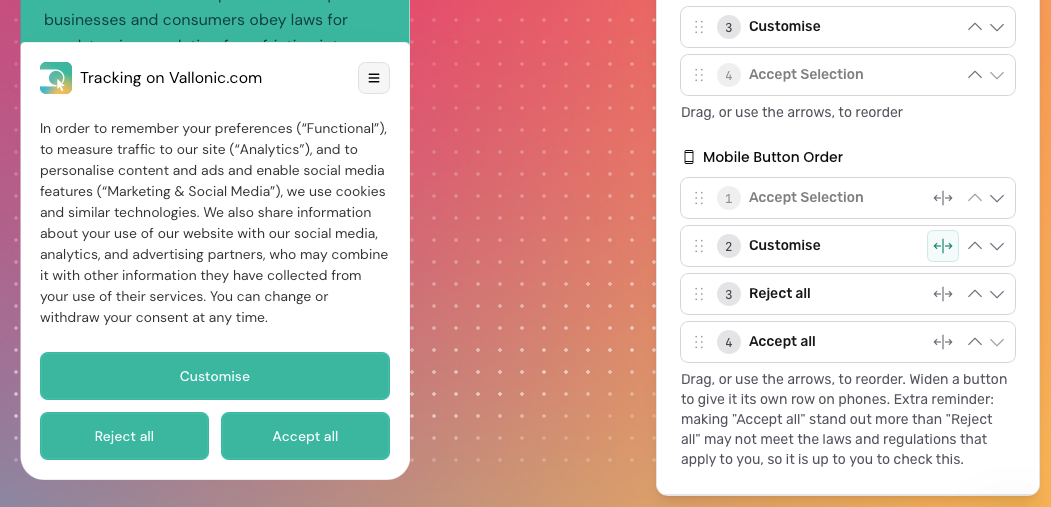
On phones, you can now choose which consent buttons get a row of their own. Next to each button in Mobile Button Order there is a new widen icon: switch it on and that button spans the full width of the banner, while the buttons around it stay side by side. For example, put Accept all first and widen it to show it on top, with Reject all and Accept selection next to each other underneath.

You can find Mobile Button Order under Banner Buttons on the Behaviour page via Banner → Behaviour → Banner Buttons. Switch the editor preview to Mobile to see the result straight away.

This is only available on the New (beta) engine. Existing banners keep their current layout until you change it; new domains start with every button on its own row.

Full documentation:
https://learn.consent.studio/articles/9913654-banner-button-order

Improved

Earlier updates